Track Changes vs an independent diff: why you should verify redlines yourself
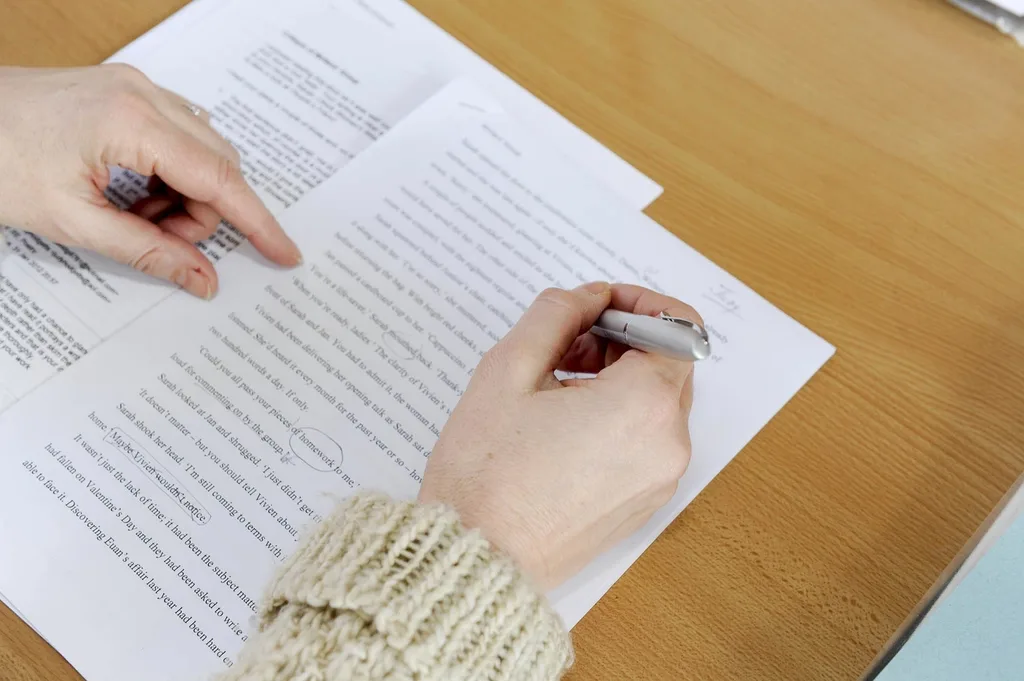
Track Changes is one of the genuinely great features of word processors: it records edits as they are made, attributes them to a person, and lets the next reader accept or reject each one. It is also a feature that depends entirely on the good faith and the settings of whoever used it. An independent comparison of the two files asks a different question — not “what was marked up?” but “what is different?” — and that is the question a reviewer actually needs answered.
What revision marks actually are
In a DOCX file, a tracked insertion is stored as a run wrapped in an insertion element, and a deletion is stored as the original text wrapped in a deletion element — still physically present in the file, just marked as removed. Each carries an author name and a timestamp. The visible redline you see on screen is the word processor rendering those marks, not a comparison it performed.
That storage model has a direct consequence: the marks live only as long as the marks. Accepting a change deletes the record of it. There is no second copy of the previous wording hidden elsewhere in the file, and no log of what was accepted, beyond what the document's history — if any — kept outside the file itself.
The accepted-changes blind spot
The most common way a redline misleads is entirely mundane: someone edits with tracking off, or clicks “Accept All Changes” before sending, and the file arrives looking clean. Nothing in the document says this happened. If you rely on the marks alone, a clean file reads as “no changes since last time”, which is exactly the wrong conclusion.
There is a display trap next to it. Word's review pane can show a document as “Simple Markup” or “No Markup”, which hides existing revision marks without removing them — so one reader sees a heavily marked draft and another sees a clean page of the same file. Before trusting what is on screen, check the review mode, and check whether the file still contains marks at all.
Word's own Compare Documents, and where it stops
Word has a real comparison feature — Review → Compare — which takes two DOCX files and produces a third document containing a generated redline. It is good, it understands Word's own structure, and if both versions are DOCX and you have Word, it is a sensible first tool. LibreOffice has an equivalent under Edit → Track Changes → Compare Document.
It stops where the formats stop. It will not compare a DOCX draft against the PDF that was actually signed, it needs the desktop application, and it produces a full document rather than a list you can filter by change type. For a quick “what moved between these two files”, especially across formats, a text-level comparison answers faster and travels better.
What happens when the document becomes a PDF
Converting to PDF prints the document in its current state. Pending revision marks are either rendered as visible marked-up text or dropped entirely, depending on the export settings — and either way the structured record disappears: a PDF has no insertion or deletion elements, only the text as it was laid out. This is why the signed PDF is both the most authoritative version and the least self-describing one.
Comparing two PDFs therefore compares final states, which is usually what you want at signature time: not “what did they intend to change”, but “what does this document say compared to the one we approved”. Extraction quirks aside, that comparison is the one that matches the piece of paper.
Metadata tells you who and when, never what
A DOCX carries document properties: creator, last modified by, revision number, total editing time, sometimes a template name and a company. They can be informative — a “final” version whose last editor is not the person who sent it is worth a question — but they are trivially editable and frequently wrong after a round trip through another program.
Author names attached to revision marks have the same status. They are a hint about process, not evidence about content. The only reliable statement about content is a comparison of the text of the two files you actually hold.
Trust, but verify: a two-minute routine
Keep every version you receive, named so the order is obvious. When a new one arrives, run an independent text comparison of the previous version against the new one before you read the covering email, so your first impression comes from the document rather than from the summary of it. Then read the email and check that the two agree.
If the two disagree, you have not caught anyone out — undeclared changes are far more often the result of a hurried edit with tracking off than of anything deliberate. But you have found the list of things to ask about, and you have it in writing. Export the report, attach it to the version you approved, and the next round starts from facts.
The takeaway
Revision marks describe intent and survive only until someone accepts them; a comparison of the two files describes the result. Use Track Changes to work, and an independent diff to check — especially when the version that matters arrived as a PDF.
Open two versions and see every change
More guides
Comparing contract versions: what to look for beyond the obvious edits
The dangerous edits in a contract are rarely the ones in the covering email. Here is the checklist a reviewer runs through when a new version lands.
Why PDF text extraction is imperfect: columns, ligatures, scanned pages and hyphenation
A PDF does not contain paragraphs. It contains instructions for placing glyphs on a page — and everything a comparison tool knows about your text is reconstructed from them.